
Smart CMS: running your site — pages, blocks, media and the search fields
A guide for whoever edits the site: how the admin panel is laid out, how a page is assembled from blocks, what to do instead of deleting, why an address must never change without a redirect, how to fill in the search fields and where to find enquiries from forms.
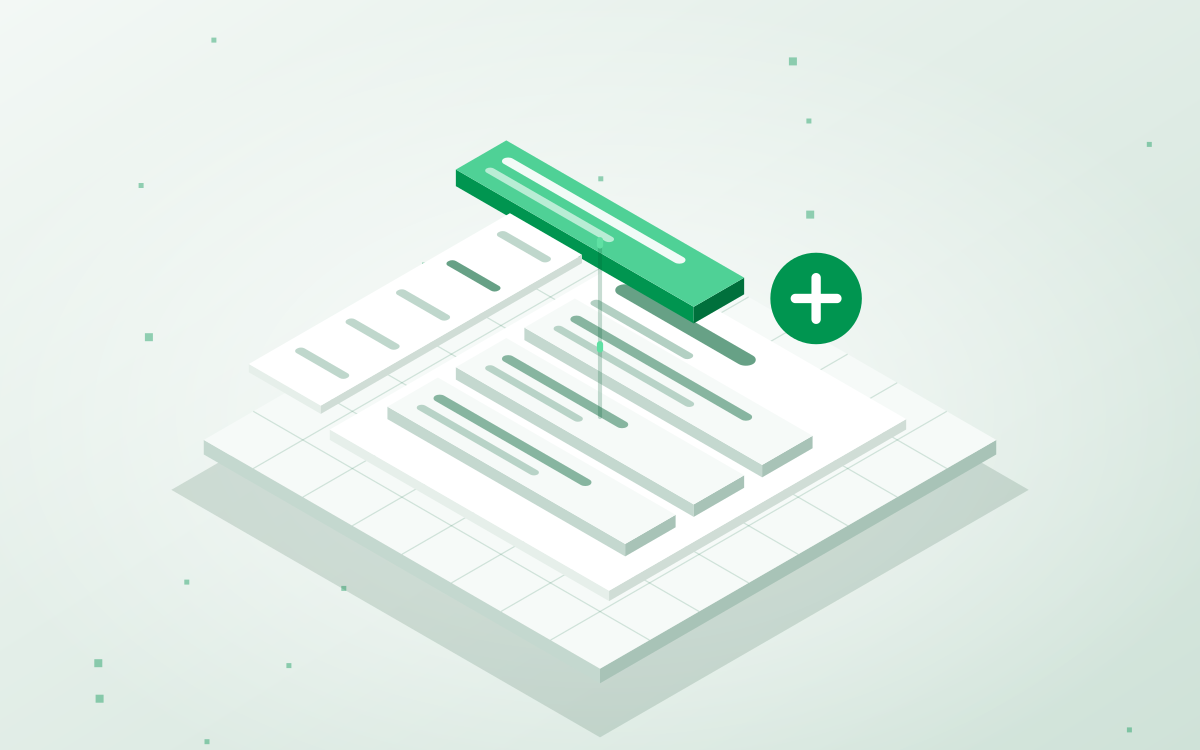
- The core idea — A page is a set of blocks. The order of the blocks is the order of the sections on the site; any block can be hidden without deleting it.
- The costliest mistake — Changing a page address without a redirect: old links and search rankings fall away silently.
- Nothing is lost — A disabled module, a vanished block type or an archived page all leave their content in the database — it comes back.
Smart CMS is the system we build sites on, from a single-page profile to a shop with a catalogue fed from an accounting system. This guide is for the person who runs the site day to day: how to add a page, assemble it from blocks, avoid breaking addresses, fill in the search fields and find enquiries from forms. None of it needs a developer.
Sign-in and permissions
The admin panel opens at your site's address with /admin at the end. Access is granted by the site administrator; you change your own password under «My profile».
There are three roles, and they limit exactly what appears in the menu:
- Viewer — looking only.
- Editor — pages, media, menus, enquiries: everything to do with content.
- Administrator — all of that plus users, modules, settings and redirects.
Every action is logged. This is not surveillance of the editor but an answer to the question «who changed this, and when?», which sooner or later comes up on any site with more than one person.
How the panel is laid out
On the left, a menu grouped by meaning:
- Content: «Dashboard» with the summary, «Pages», «Media», «Menus».
- Shop — appears if the relevant modules are on: products, orders, prices, delivery.
- Settings: general site settings, users, modules, redirects, the MCP server.
The menu shows only what is enabled on your particular site. If you have no shop, there is no section for it.
Step 1. Pages
The «Pages» section is the structure of the site. Pages are shown as a tree: parents and children. You can filter by status (published, drafts, archived) and search by title or address.
- The order changes by dragging, but only within one level. Moving a page into a different section is a separate «Move» action.
- Duplicate is handy when building a similar service page: the copy is created as a draft.
- Archive is the state between «published» and «deleted». The page disappears from the site but stays in the panel. Deletion, unlike archiving, is irreversible.
Step 2. A page is assembled from blocks
There is no «big text field» inside a page. There are blocks: a hero, text, a gallery, a list of benefits, a form, a catalogue, a call to action. A new page says so itself: «This page is empty. Add the first block».
The «Add block» button opens the list of what is available, grouped by purpose: Text, Media, Call to action, Layout. The set depends on the enabled modules and your site's theme.
There are three things you can do with a block:
- Drag it up or down — the order of the blocks is the order of the sections on the page.
- Hide it on the site — the block stays in the panel marked «hidden». That is what to do with a seasonal promotion rather than deleting it and typing it in again next year.
- Delete it — for good.
The state is always visible above the page: «saved at 14:32» or «unsaved changes». The «Preview» button shows the page as it will look before you publish. «Publish» makes it visible, «Unpublish» returns it to drafts.
Three messages worth understanding
- «The module is disabled, so this block is not shown on the site». The content has not gone anywhere — it comes back the moment the module is enabled.
- «This block type is unavailable». The same thing, except the module was removed from the build. The content sits in the database and waits.
- «The saved data of this block failed validation». The most important one: as long as you do not touch this block's form, saving the page leaves the old content as it is. Any edit to the form will replace it with the new value — so copy whatever you need to keep first.
Step 3. The page address
The address (the slug) is set in the page settings. The system warns you right in the form: changing the address breaks existing links to the page.
If the address does have to change, create a redirect from the old one to the new one in the «Redirects» section. That is five seconds of work which preserves both your search rankings and the links already sent to customers or sitting in your ads.
Step 4. The search fields
Each page has several fields that shape how it looks in Google:
- Search title. Left empty, the page title is used. The panel hints at the length: 30–60 characters is ideal.
- Search description. The text under the title in the results. 120–160 characters is ideal; anything longer gets cut by Google.
- Words for site search. Synonyms and colloquial variants that do not appear in the page text, so that your own site search finds it. This has no effect on Google: search engines stopped reading the keywords tag long ago.
- Hide from search engines. The page stays reachable by a direct link but will not enter search results. Handy for thank-you pages and internal ones.
If the SEO module is on, the system fills empty fields from the page text when you save. Anything written by hand it leaves alone. If you run SEO yourself, the module can be switched off.
The sitemap, robots.txt, structured data and social-media tags work from the start and need no separate setup.
Step 5. Media
The «Media» section is the site's shared file library. You can upload simply by dragging, several files at once.
Every image is converted to WebP on upload and cut into three sizes — the page does not drag a four-megabyte phone photo. There is no need to compress anything in advance.
What is worth doing by hand is writing the alt text: a description of the image in words. Blind visitors and search engines read it, and it is also how you will find the file in the library later: search covers both the name and the alt text.
Step 6. The site menu
The menu lives separately from the pages, in the «Menus» section. That is deliberate: not every page belongs in the navigation, and the order of the items rarely matches the order of pages in the tree. An item can point to a page on the site or to an external address.
Step 7. The AI assistant
The text fields have an assistant: it will suggest a heading, rewrite a paragraph in the tone you need, shorten a long text, draft a search description or a caption for an image. The last word is always yours — nothing is published without confirmation.
Separately, there is a chat in the corner of the panel: it will tell you how to add a page or change a block, and will do it itself if you ask. Both work through a key set in the installation settings; without a key the rest of the system works as usual.
Step 8. Modules
Every capability is a separate module: forms, news, catalogue, shop, payments, comments, client dashboards, analytics, audit. They are switched on and off in the «Modules» section.
The rule is simple: disabling a module deletes nothing. Its blocks drop out of the available list, an empty space remains on the page, and the data waits in the database and returns once the module is enabled again. So switching off what you do not use is fine and even useful: less clutter in the menu.
Step 9. Enquiries from forms
If the forms module is on, every enquiry from the site collects in the enquiry register in the panel — even if a notification email got lost somewhere. Enquiries can additionally be sent:
- to the responsible person's email;
- to a Google Sheet — immediately on submission, with a check every 15 minutes picking up whatever did not get through;
- to a Telegram group of managers.
Check the register at least once a week: a silent form is the most common reason behind «we are not getting any enquiries», and that is the only place you can spot it.
What we do, rather than you
- Updates. An update replaces the whole system image instead of applying patches, so there are no «forgotten versions» here. The release is signed, the installation verifies the signature before installing, and if the site does not respond after an update the previous version is restored automatically.
- Security. There is no third-party code in the system: we write and maintain every module ourselves. Plus roles, an action log, sanitising of submitted HTML and lockout after several failed sign-in attempts.
- Hosting and backups. Each site has its own database and its own file directory.
Your site's core version number is shown at the bottom of the panel.
In short: what not to do
- Change a page address without a redirect.
- Delete a block when it only needs to go away temporarily — that is what «hide» is for.
- Edit the form of a block carrying the failed-validation warning without copying the old content first.
- Fill in «words for site search» hoping to influence Google — they only work for search inside the site.
- Compress images by hand before uploading: the system will do it better, and in three sizes.
If you cannot find what you need in the panel, write to info@sgt.com.ua. If the capability genuinely is not there, it becomes a module or a block and arrives with the next update to every site at once.