
Smart Audit: how to check your site and what every line of the report means
A free site check in three minutes: how to run it, what the service actually reads and what it deliberately does not do, how to read the score, the four sub-scores and the split of findings into “fixed by migrating” and “stays with you”. With a check of our own site as an example.
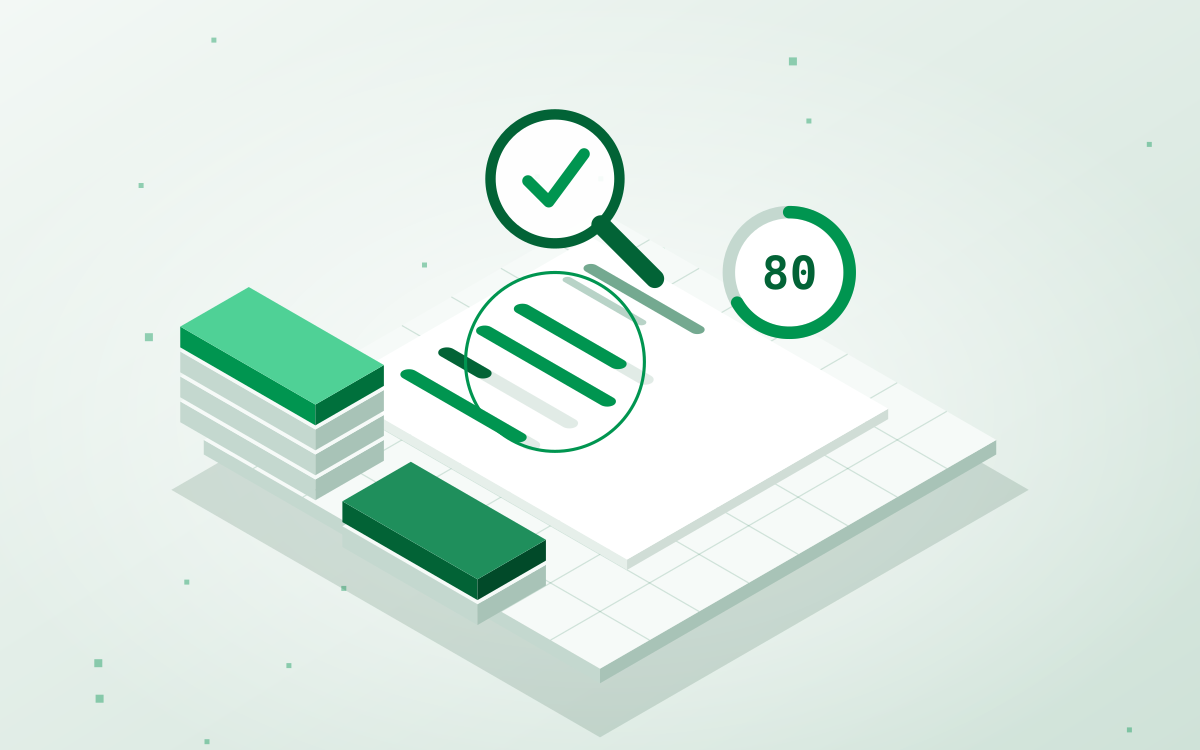
- How to run it — audit.sgt.com.ua, enter an address — about three minutes, up to 20 key pages, no sign-up, free of charge.
- Read this first — Not the score but the two columns: what a migration fixes and what stays on your site. The score only shows the scale.
- Limits of the check — The scan is passive: your forms are not submitted, no passwords are guessed, the contents of protected files are never read.
Smart Audit is our site-checking service: you enter an address and a few minutes later you get a report on security, search visibility, speed and readiness for AI agents. No sign-up is required and the check is free. Below is how to use it and, more importantly, how to read the result: what the score means, why the two columns of findings matter more than it does, and what the report deliberately leaves out.
Step 1. Run the check
Open audit.sgt.com.ua, type your site address into the field on the first screen and press «Check the site». You can skip the protocol; the domain is enough.
From there the service crawls the site itself. It takes about three minutes and looks like a progress bar naming the pages being read right now.
- Up to 20 key pages are checked. Not everything in a row: the home page first, then contacts, the catalogue, pricing and «about us». A hundred product cards would add nothing new to the conclusion, and the wait would be five times longer.
- One request per second. The load on your site is lighter than a single live visitor.
- The scan is passive. It reads public pages, response headers and the certificate — exactly what Google sees.
What the check does not do
This matters, because the phrase «security audit» frightens a site owner more than the holes themselves.
- It does not guess passwords and does not try to get into the admin panel. If
/wp-adminis open, the report records the fact that it is reachable — without a single login attempt. - It does not submit your forms. That is why the report says «the form is built so that it can work» rather than «we tested the submission»: no real enquiry from our check will appear in your CRM.
- It does not probe for vulnerabilities actively: no injections, no path enumeration, no load-heavy crawling.
- It respects
robots.txt, including the delay between requests. The bot identifies itself asSmartAuditBot— you can see it in your logs.
Service files such as /.env or /backup.sql are checked with a single request and only the response code is recorded. The contents are never read and never stored. A «401» or «403» is not counted as a finding: the file is protected, as it should be.
Step 2. Read the report header
The report opens at its own link — you can forward it to a colleague or a contractor, no sign-in needed. At the top: the domain, the date of the check, the site platform (the service detects it on its own) and the number of pages checked.
Then the score out of a hundred and three numbers beside it:
- Your score. The overall rating of the site.
- A typical site on Smart CMS. A benchmark to compare against.
- Room to grow. The gap between the two — how many points are lying on the table.
Below the score the service states how it classified your site: corporate, online shop or information resource. If it guessed wrong, switch it with one click — some rules and weights depend on the site type.
Beside it, four sub-scores: visibility, security, speed, AI agents. These are what tell you where to look, because the overall score averages things out and so hides a collapse in one section.
Step 3. The two columns — the heart of the report
Below the sub-scores every finding is split in two:
- Fixed by migrating — what disappears on its own if the site moves to our Smart CMS: security headers, compression, an outdated platform, social-media markup, form protection.
- Stays on your site — what needs a human decision: an empty page title, missing copy, undefined access for AI assistants.
This is not a marketing split but an answer to the question «what do I do about this?». The score draws attention; the table tells you the actions. There is a «show only what a migration fixes» toggle — handy when you are deciding whether to migrate at all.
Step 4. Work through the findings
First the «Key points» block — the three most important items in plain language, with no jargon. Then the findings are grouped by check section, each with three things:
- Importance: «important», «worth fixing» or «minor».
- How many pages are affected.
- The expanded view — the exact addresses and an explanation of why it is a problem.
The explanations are written for the owner, not the developer. For images without dimensions, for instance, it does not say «the width and height attributes are missing» but that the text below the image jumps while it loads and the reader loses the line they were on.
How to read the speed section
We do not eyeball speed: these are real PageSpeed Insights measurements for mobile — the very ones Google sees. Four metrics are explained in the report in plain words:
- Main content — when the largest block of the page appears.
- Layout shifts — how much the page jumps around while loading.
- Blocking time — how long it ignores taps while loading.
- Visual readiness — when the page looks loaded.
The score uses a zone rather than the raw number: green, amber or red. Speed depends on the time of day and the connection, so attaching meaning to tenths of a second would be self-deception. The desktop rating is shown separately — it is usually much higher, and that is normal.
Step 5. The full report and the dashboard
The report page shows the main findings. The full list with every affected address, the comparison table and a PDF opens once you leave your email.
The dashboard collects every check made from your address and the score history for each site. That is the most useful part: check, fix, check again — and you can see whether things really improved rather than «feel faster».
What exactly gets checked
Four sections, 85 rules.
- Security. Platform and version, outdated plugins, certificate and protocol, security headers and session cookies, service files left in the open, forms without cross-site request protection.
- Search visibility. Titles and descriptions, duplicates across pages, canonical tags, robots.txt and the sitemap, structured data, social-media markup, broken links and redirect chains, images without alt text or dimensions.
- Speed. Core Web Vitals on mobile and desktop, page weight and request count, caching and compression, layout shifts.
- AI readiness. The llms.txt file and access for AI bots, whether there is content without JavaScript (agents do not render the page), data as a machine-readable contract, an MCP endpoint.
That last section is still rare elsewhere. The logic is simple: search is no longer the only way people hear about you. If all your text appears only after scripts run, an AI assistant sees an empty page — and will tell the customer about a competitor instead of you.
The quietest findings are about forms
A form is the one place where a visitor becomes an enquiry, and it breaks without a single error message: the site opens, the button clicks, the enquiries do not arrive. The owner spends years blaming «a bad market».
The most expensive rule in that section is a field with no name attribute: the browser does not send such a field at all. The person fills in a phone number, sees a thank-you page, and the manager receives an enquiry with no phone number. We also check bot protection, autofill on email and phone fields, and whether the form sits on an unencrypted page.
What the report leaves out, and why
- Google rankings. They live in Google, not on the site, and the honest ways to get them are the owner's Search Console or a paid source. Showing something approximate instead is worse than showing nothing.
- The contents of protected files. We see the response code only.
- A verdict on design and copy. That is not something an automated check can judge.
An example: we checked our own site
While writing this guide we ran the Smart CMS landing page through Smart Audit. The result was 80 out of a hundred: visibility 79, security 100, speed 36, AI agents 90.
What it showed above all: two pages with no H1 heading, an amber speed zone on mobile, and images without declared dimensions. The headings are already being fixed in the next core release — and that is exactly how this report is meant to work: as a list of work, not as grounds for pride in a number.
What to do with the result
- Fix it yourself. The report is written so that you can hand it to your own developer as a ready brief: what, where and why.
- Fix part of it and check again. Re-checks are free and the score history stays in your dashboard.
- Migrate to Smart CMS. Then the left-hand column of findings closes by the migration alone. It costs from $500 depending on the number of pages and takes five working days: hosting access, the transfer with a redirect map, a check on a temporary address and the domain switch after your go-ahead. The CMS itself is free, with a perpetual right of use. Your old site stays untouched, so a rollback is possible at any time.
If you would rather not hand over server access, your own administrator does the transfer following our instructions and we verify the result.
Questions about the report: write to info@sgt.com.ua or use the chat on the site. If any item looks wrong, tell us: we review every such complaint, because one wrong line costs the credibility of the whole report.